

How to reduce your WordPress CPU load without upgrading your WordPress shared hosting server? The last thing you’ll ever want is a slow server which might affect your Google ranking, a constant server crash (if you’re on a dedicated server) or your web hosting company shutting off your blog without warning due to excessive usage.
Here are the 20 methods I used to reduce my WordPress CPU load and bandwidth without upgrading to a much more expensive server.
↓ 01 – Compress And Remove JPEG PNG Metadata
Images are one of the biggest bottlenecks when it comes to loading a webpage, this is why it is important to further compress and remove unnecessary data from these images. Based on one of my experiment, Google doesn’t rely on these metadata on ranking or for keywords, I did a simple test by inserting a unique 10 digit number into a jpeg’s metadata, then I waited for a month and did a quick search for that 10 digit number on Google Images and the result was zero. Here are 2 freeware that removes metadata from images.
- PNG Gauntlet [ Free ] – Loss-less compression for PNG and Gif
- Stripper [ Free ] – Remove unnecessary metadata from JPG/JPEG/JFIF & PNG files, no loss of image quality
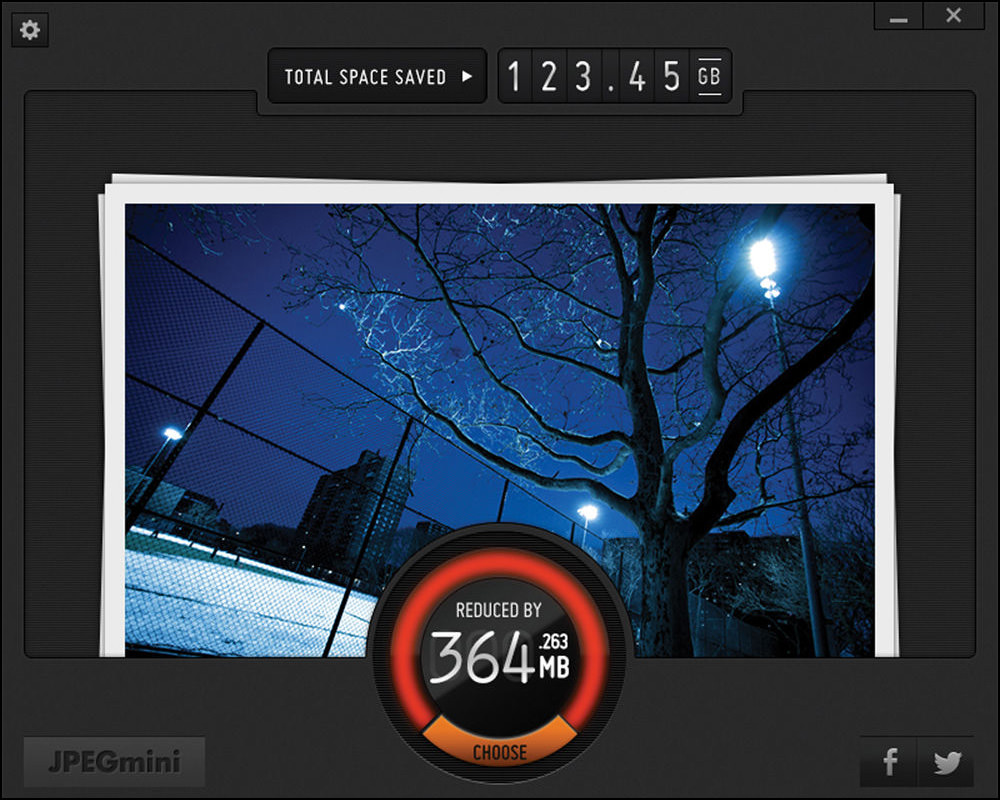
- JPEGmini [ Recommended – USD 19.99 ] – Possibly the best image compressor ever! I use this software
As for compressing Jpeg, the best Jpeg compressor with no loss of image quality is none other than JpegMini. I’ve tested many and no one comes close to JpegMini in terms of compression output. Unfortunately, it is not free. Highly recommended if your blog is full of images.
Last but not least, there are many plugins for WordPress that perform image optimizing jobs every time you upload an image to your WordPress blog, the only catch is, it doesn’t compress existing images, even if it does, it has some limitations.
- CW Image Optimizer
- Imagify Image Optimizer [ Recommended ]
- EWWW Image Optimizer
- ShortPixel Image Optimizer
- WP Smush.it
↓ 02 – Use A CDN With Parallel Downloads
One of the best ways to speed up your blog is to use a CDN. You can dramatically reduce your server’s CPU load by hosting your WordPress Theme’s images on a CDN server. A CDN, also known as Content Distribution Network, hosts your images on multiple servers all over the world, and when a user requests an image, it will be delivered to them via the server closest to them.
Some argued on the additional DNS connection required, again, based on my test with tools.pingdom.com, my site is faster than before. The best solution going forward is to use a CDN, also known as Content Distribution Network. Read our previous article on – 5 Free CDN for WordPress. For small blogs, here are 2 of the more affordable CDN in the market.
- Amazon CloudFront CDN [ Value for Money ]
- CloudFlare [ Recommended – Free ]
- MaxCDN [ Now StackPath ] [ Flat Rate ]
- Jetpack Photon by WordPress [ Free ]
- CoralCDN [ Free / Open Source ]
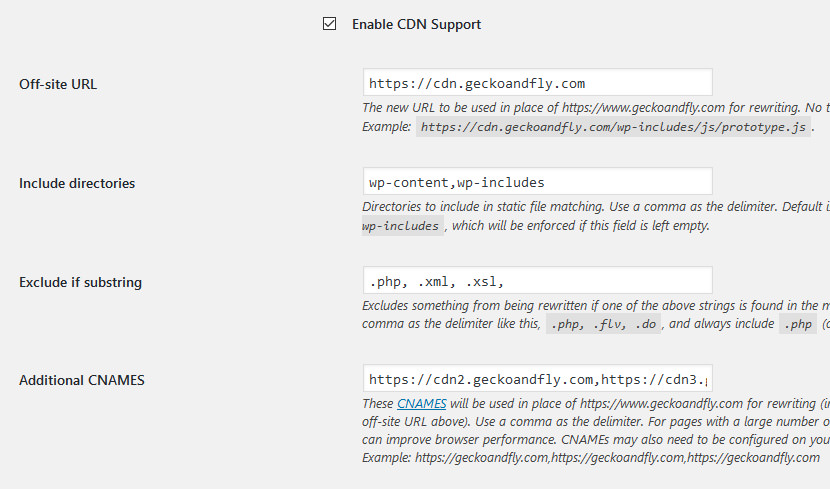
As for parallel downloads, this means the CDN server has the ability to deliver images via multiple sub domains. For instant, it is faster to have the image delivered via 4 subdomains such as image01.domain.com, image02.domain.com, image03.domain.com and image04.domain.com, then to have it delivered via a multiple sub domain.
p.s. CloudFlare is more than a CDN, it is also a reverse proxy, cache, it compresses and combines css and many more. Ideal for those that want a simple solution for all of their needs. Worth trying.
↓ 03 – How To Serve Static Content From A Cookieless Domain
Requires CDN – Serving images without cookies attached to it requires serving images via a CDN or subdomain. Usually in the form of images.your-domain.com. The trick is to tell WordPress to serve cookies from www.your-domain.com and remove cookies from images.your-domain.com. You will need a CDN, and serve images via the CDN on a subdomain, then insert the following code into your wp-config.php. This code will strip off all cookies for your subdomain.
define( 'COOKIE_DOMAIN', 'www.your-domain.com' );
↓ 04 – Cache, Optimize CSS And Compress JavaScript
By removing unnecessary codes and line breaks, you might have the opportunity to reduce the CSS file size by 50%. Again, this translates into massive bandwidth saving due to the fact that your style.css file is downloaded every time a unique visitor visits your blog. Back in the good old days, you had to manually compress and combine the css. Today, you have a variety of plugins that do the job.
- W3 Total Cache [ Too Complicated ]
- WP Super Cache by WordPress with Autoptimize [ Recommended ]
- WP Rocket Cache [ USD 40 / 1 year / 1 site ]
- Cache Enabler [ Super Simple User Interface ]
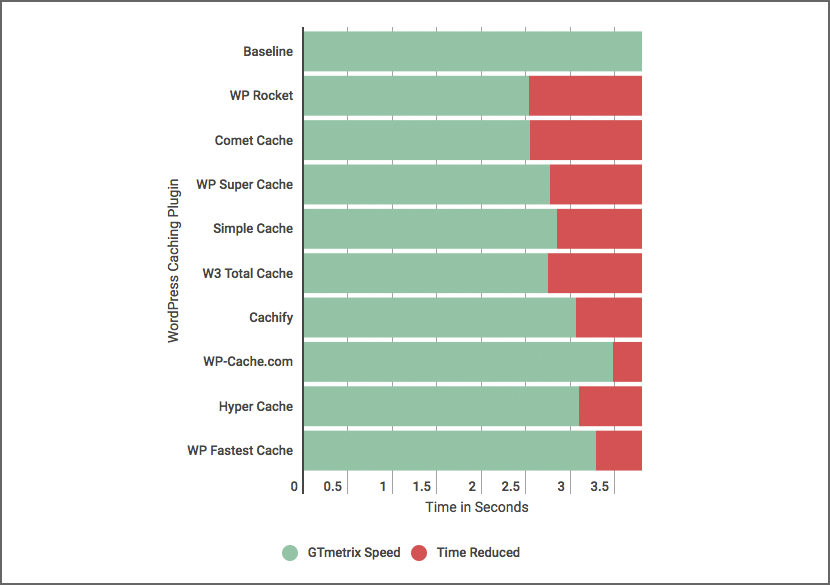
My 15 experience in dealing with WordPress taught me that simplicity is the best answer. W3 Total Cache comes with too many features, WP Rocket Cache is good but costs you money. WP Super Cache by WordPress is right in the middle, not too complicated yet provides all the features. The fastest cache doesn’t mean anything if it breaks your site once too often.
also, use asynchronous to load all web fonts, if possible, asynchronous loads your Google Adsense, your Google Fonts, Facebook Like Box and more. This is a very long topic that requires in-depth tutorials. Try google about it. If possible, avoid loading heavy fonts and use the default Arial or Verdana that is compatible with every browser. Most cache plugins have this feature, autoptimizer has this feature too, enable it.
↓ 05 – Optimize MySQL Database
Do you know that even after deleting a plugin/theme from your WordPress website, some of its leftovers may remain in your database? Such as orphan options, orphan tables and orphan cron tasks. As you may know, not all plugins/themes care about the housekeeping of your WordPress database. As long as you are removing plugins/themes, leftovers will be accumulated in your database and will influence your website performance.
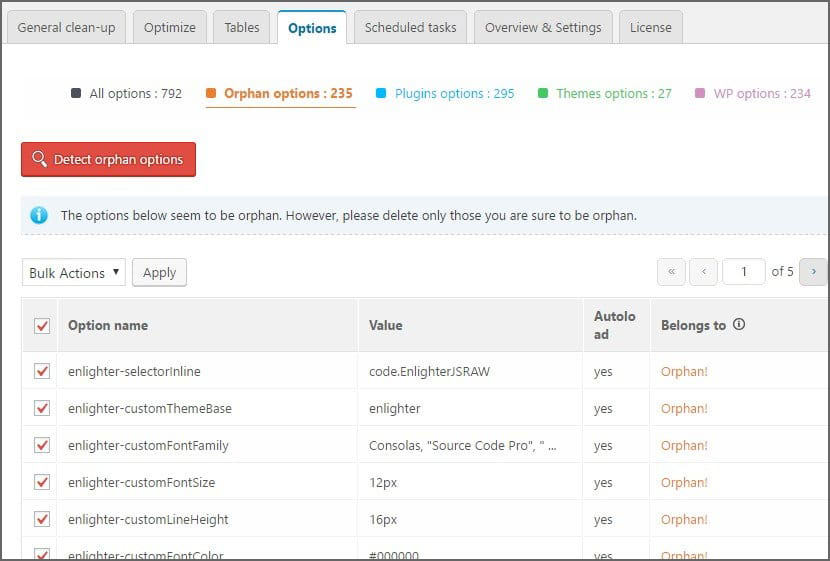
Just like your Microsoft Windows PC, as time goes by, the registry gets bloated as you install and uninstall software. Same thing goes with your WordPress installation every time you install and uninstall a plugin. Clean Options [ Outdated but still workable ] plugin’s goal is to give users an easy and safe way to get a bloated wp_options table down to a manageable size, thus improving the performance of their blog. If using an outdated plugin is not your cup of tea, Advanced Database Cleaner [ USD 30 per site] has the same feature.
The tables in MySQL (the database that WordPress uses) will, over time, become inefficient as data is added, removed, moved around. Asking MySQL to optimize its tables every now and again will keep your site running as fast as possible. Here are 2 recommended plugins that do the job without requiring you to log into your web hosting server.
↓ 06 – Manually Remove Redundant Data From MySQL
Most MySQL Optimization plugins perform a simple cleaning process, this is to prevent it from breaking your MySQL. This is where you have to manually perform a deeper cleaning. To clean up “wp_commentmeta” Junk Entries – Use the following command to delete “junk” entries which have no relation to wp_comments. Junk entries are like orphan entries, data from comments you removed, etc.
DELETE FROM wp_commentmeta WHERE comment_id
NOT IN (
SELECT comment_id
FROM wp_comments
)
Akismet Related Metadata in wp_commentmeta Table – Every time a spammer drops a comment, Akismet saves a record of it, records such as IP address and more. These data may be useful to some but this is the mother of all load. By right, the wp_commentmeta ought to be 2KB or less, due to the presence of Akismet, it can be as huge as 10MB or more, depending on the amount of spam you receive. Remove all the unwanted data by performing this simple query.
DELETE FROM wp_commentmeta WHERE meta_key
LIKE "%akismet%"
Remove Comment Agent – By default, whenever someone comments on your blog, it captures a small amount of info such as browser, IP address, and etc. These data are useful for stats purposes because most of us use Google Analytics, thus it doesn’t make any sense to store these data on your blog. Batch removes these data.
update wp_comments set comment_agent ='' ;Mass Close Trackbacks and Pings On All Posts – Nobody uses trackbacks anymore, so is ping. Remember Technorati? Yes, ping and trackbacks are officially dead and it shall be buried along with the rest of redundant features by closing all ping channels. Batch close by using this query.
UPDATE wp_posts SET ping_status = 'closed';Delete all Unused Tags – Tags, Cloud Tags and many more are dead due to massive abuse by bloggers. Tags no longer help in ranking or convey the intended message. Categories are still the best option. If you happen to have lots of redundant and unused tags, why not perform these simple queries to clean up the database.
DELETE FROM wp_terms WHERE term_id IN (SELECT term_id FROM wp_term_taxonomy WHERE count = 0 );
DELETE FROM wp_term_taxonomy WHERE term_id not IN (SELECT term_id FROM wp_terms);
DELETE FROM wp_term_relationships WHERE term_taxonomy_id not IN (SELECT term_taxonomy_id FROM wp_term_taxonomy);
Delete Feed Cache – Yet another feature made obsolete by abuse. I have to say having a feed is a popular feature, it is like having your own personal facebook. As time went by, mobile surfing took over and thus the death of feed. Why not delete all the useless transients created by the blog?
DELETE FROM `wp_options` WHERE `option_name` LIKE ('_transient%_feed_%')Delete all post revisions and their metadata – Post revision is a very useful feature, however, it can occupy a significant amount of space if you blog too often. Your database will be big and bloated with lots of unnecessary data. Mass remove these revision with the following query:
DELETE a,b,c FROM wp_posts a WHERE a.post_type = 'revision' LEFT JOIN wp_term_relationships b ON (a.ID = b.object_id) LEFT JOIN wp_postmeta c ON (a.ID = c.post_id);Change the Default ‘Admin’ Username – Prior to WordPress 3.0, users are forced to use the ‘admin’ username as the default username. For security purposes, it is a good idea to change the old ‘admin’ username to something else.
UPDATE wp_users SET user_login = 'YourNewUsername' WHERE user_login = 'Admin';↓ 07 – Lazy Loading Images And Videos
Lazy Load displays images and/or iframes on a page only when they are visible to the user. This reduces the number of HTTP requests mechanism and improves the loading time. Because of the way it is run, it can break certain scripts or plugins. Remember to test and exclude any scripts that is not compatible with lazy loading.
- Lazy Load by WP Rocket
- BJ Lazy Load
- a3 Lazy Load [ Recommended ]
↓ 08 – GZip Compression
GZip compression is performed automatically by W3 Total Cache, WP Super Cache plugin and most cache plugins. Skip this if you have WP-SuperCache or any other cache plugin that performs this task. By enabling Gzip compression on your blog, it will significantly increase the CPU Load while reducing the bandwidth.
If you have a fast CPU, by all means go ahead. GZip has its own strength and weakness, the good thing about GZip compression is pages tend to load faster due to the smaller size, on average the the files are 60 – 75% smaller.
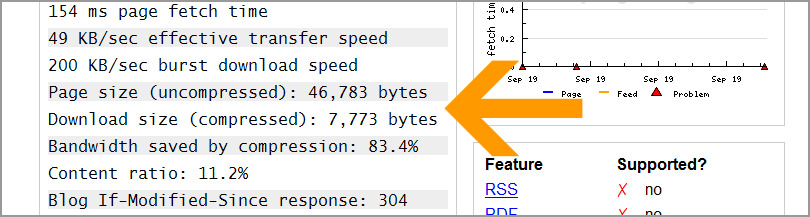
Smaller file size means faster serving/downloading, meaning to say your CPU has more processing power for some other stuff. I guess this is a very subjective topic. Anyway, to enable GZip in WordPress, simply insert this code into header.php, it must be above everything else, not before any other code.
<?php if (substr_count($_SERVER['HTTP_ACCEPT_ENCODING'], 'gzip')) ob_start("ob_gzhandler"); else ob_start(); ?>Alternatively, you can insert this simple Gzip code into your .htaccess file
SetEnvIfNoCase ^(Accept-EncodXng|X-cept-Encoding|X{15}|~{15}|-{15})$ ^((gzip|deflate)\s*,?\s*)+|[X~-]{4,13}$ HAVE_Accept-Encoding
RequestHeader append Accept-Encoding "gzip,deflate" env=HAVE_Accept-Encoding

AddOutputFilterByType DEFLATE application/atom+xml \
application/javascript \
application/json \
application/rss+xml \
application/vnd.ms-fontobject \
application/x-font-ttf \
application/xhtml+xml \
application/xml \
font/opentype \
image/svg+xml \
image/x-icon \
text/css \
text/html \
text/plain \
text/x-component \
text/xml
Here are three of my favorite GZip site verification tools. Each with its own uniqueness when it comes to the report, such as the speed it loads, method used and many more.
- Is My Blog Working
- Arul John’s Gzip Test
- SEO Site Checkup
↓ 09 – Enable the Default WordPress Object Cache
Skip this if you are using a cache plugin installed, WordPress 2.0 and higher comes with a feature known as WordPress Object Cache, sadly it is not enabled by default, therefore making this feature somewhat of a mystery. This code is automatically inserted into your htaccess when you activate any WordPress Cache plugin.
-
- Step 1 – Open your wp-config.php file
- Step 2 – Insert the following code
define('ENABLE_CACHE', TRUE);-
- Step 3 – Create the cache directory
/wp-content/cache/- Step 4 – Change the ‘cache’ folder writable permission to 755 or 777
To set it’s expiration time you can add this line:
define(‘CACHE_EXPIRATION_TIME’, 3600);If you’re using Wp-SuperCache of W3 Total Cache, ignore the WordPress Object Cache feature. Last but not least, use a good WordPress theme, choose wisely, a well coded theme will greatly reduce the number of queries, have minimal W3C error and is Google friendly. Insert this quote to find out the number of queries for different themes:
<?php echo $wpdb->num_queries; ?>q, <?php timer_stop(1); ?>s↓ 10 – Set Expire Header, Cache and Cookies
As usual, most cache plugins already handle this. If it doesn’t, you can set Expires headers on specific files or even file types. Then when the browser comes to the website it can see when was the last time it downloaded the specific file types.
If it was recently it will display them from the cache, if you haven’t visited the site in a while it will download the newest version from the web server. The following code includes every possible file and configuration for Apache server, but does not work with Nginx configuration. Include the following code into your .htaccess file.
# ----------------------------------------------------------------------
# Expire Header
# ----------------------------------------------------------------------

# Use UTF-8 encoding for anything served text/plain or text/html
AddDefaultCharset UTF-8
# Force UTF-8 for a number of file formats
< IfModule mod_mime.c >
AddCharset UTF-8 .atom .css .js .json .rss .vtt .xml
< /IfModule >

# FileETag None is not enough for every server.
< IfModule mod_headers.c >
Header unset ETag
< /IfModule >

# Since we’re sending far-future expires, we don’t need ETags for static content.
# developer.yahoo.com/performance/rules.html#etags
FileETag None

# Send CORS headers if browsers request them; enabled by default for images.
< IfModule mod_setenvif.c >
< IfModule mod_headers.c >
# mod_headers, y u no match by Content-Type?!
< FilesMatch "\.(cur|gif|png|jpe?g|svgz?|ico|webp)$" >
SetEnvIf Origin ":" IS_CORS
Header set Access-Control-Allow-Origin "*" env=IS_CORS
< /FilesMatch >
< /IfModule >
< /IfModule >

# Allow access to web fonts from all domains.
< FilesMatch "\.(eot|otf|tt[cf]|woff2?)$" >
< IfModule mod_headers.c >
Header set Access-Control-Allow-Origin "*"
< /IfModule >
< /FilesMatch >

< IfModule mod_alias.c >
< FilesMatch "\.(html|htm|rtf|rtx|txt|xsd|xsl|xml)$" >
< IfModule mod_headers.c >
Header unset Pragma
Header append Cache-Control "public"
Header unset Last-Modified
< /IfModule >
< /FilesMatch >

< FilesMatch "\.(css|htc|js|asf|asx|wax|wmv|wmx|avi|bmp|class|divx|doc|docx|eot|exe|gif|gz|gzip|ico|jpg|jpeg|jpe|json|mdb|mid|midi|mov|qt|mp3|m4a|mp4|m4v|mpeg|mpg|mpe|mpp|otf|odb|odc|odf|odg|odp|ods|odt|ogg|pdf|png|pot|pps|ppt|pptx|ra|ram|svg|svgz|swf|tar|tif|tiff|ttf|ttc|wav|wma|wri|xla|xls|xlsx|xlt|xlw|zip)$" >
< IfModule mod_headers.c >
Header unset Pragma
Header append Cache-Control "public"
< /IfModule >
< /FilesMatch >
< /IfModule >

# Expires headers (for better cache control)
< IfModule mod_expires.c >
ExpiresActive on

# Perhaps better to whitelist expires rules? Perhaps.
ExpiresDefault                          "access plus 1 month"

# cache.appcache needs re-requests in FF 3.6 (thanks Remy ~Introducing HTML5)
ExpiresByType text/cache-manifest       "access plus 0 seconds"

# Your document html
ExpiresByType text/html                 "access plus 0 seconds"

# Data
ExpiresByType text/xml                  "access plus 0 seconds"
ExpiresByType application/xml           "access plus 0 seconds"
ExpiresByType application/json          "access plus 0 seconds"

# Feed
ExpiresByType application/rss+xml       "access plus 1 hour"
ExpiresByType application/atom+xml      "access plus 1 hour"

# Favicon (cannot be renamed)
ExpiresByType image/x-icon              "access plus 1 week"

# Media: images, video, audio
ExpiresByType image/gif                 "access plus 1 month"
ExpiresByType image/png                 "access plus 1 month"
ExpiresByType image/jpg "access 1 year"
ExpiresByType image/jpeg "access 1 year"
ExpiresByType video/ogg                 "access plus 1 month"
ExpiresByType audio/ogg                 "access plus 1 month"
ExpiresByType video/mp4                 "access plus 1 month"
ExpiresByType video/webm                "access plus 1 month"

# HTC files  (css3pie)
ExpiresByType text/x-component          "access plus 1 month"

# Webfonts
ExpiresByType application/x-font-ttf    "access plus 1 month"
ExpiresByType font/opentype             "access plus 1 month"
ExpiresByType application/x-font-woff   "access plus 1 month"
ExpiresByType application/x-font-woff2  "access plus 1 month"
ExpiresByType image/svg+xml             "access plus 1 month"
ExpiresByType application/vnd.ms-fontobject "access plus 1 month"

# CSS and JavaScript
ExpiresByType text/css                  "access plus 1 year"
ExpiresByType application/javascript    "access plus 1 year"

< /IfModule >

# Gzip compression
< IfModule mod_deflate.c >
# Active compression
SetOutputFilter DEFLATE
# Force deflate for mangled headers
< IfModule mod_setenvif.c >
< IfModule mod_headers.c >
SetEnvIfNoCase ^(Accept-EncodXng|X-cept-Encoding|X{15}|~{15}|-{15})$ ^((gzip|deflate)\s*,?\s*)+|[X~-]{4,13}$ HAVE_Accept-Encoding
RequestHeader append Accept-Encoding "gzip,deflate" env=HAVE_Accept-Encoding
# Don’t compress images and other uncompressible content
SetEnvIfNoCase Request_URI \
\.(?:gif|jpe?g|png|rar|zip|exe|flv|mov|wma|mp3|avi|swf|mp?g|mp4|webm|webp)$ no-gzip dont-vary
< /IfModule >
< /IfModule >

# Compress all output labeled with one of the following MIME-types
< IfModule mod_filter.c >
AddOutputFilterByType DEFLATE application/atom+xml \
                                  application/javascript \
                                  application/json \
                                  application/rss+xml \
                                  application/vnd.ms-fontobject \
                                  application/x-font-ttf \
                                  application/xhtml+xml \
                                  application/xml \
                                  font/opentype \
                                  image/svg+xml \
                                  image/x-icon \
                                  text/css \
                                  text/html \
                                  text/plain \
                                  text/x-component \
                                  text/xml
< /IfModule >
< IfModule mod_headers.c >
Header append Vary: Accept-Encoding
< /IfModule >
< /IfModule >

# ----------------------------------------------------------------------
# Fonts
# ----------------------------------------------------------------------
# Add correct content-type for fonts
AddType application/vnd.ms-fontobject .eot
AddType font/ttf .ttf
AddType font/otf .otf
AddType font/x-woff .woff
AddType image/svg+xml .svg
# Compress compressible fonts
AddOutputFilterByType DEFLATE font/ttf font/otf image/svg+xml
# Add a far future Expires header for fonts
ExpiresByType application/vnd.ms-fontobject "access plus 1 year"
ExpiresByType font/ttf "access plus 1 year"
ExpiresByType font/otf "access plus 1 year"
ExpiresByType font/x-woff "access plus 1 year"
ExpiresByType image/svg+xml "access plus 1 year"
# ----------------------------------------------------------------------
# No Cookies
# ----------------------------------------------------------------------
< FilesMatch "\.(js|css|jpg|png|jpeg|gif|xml|json|txt|pdf|mov|avi|otf|woff|ico|swf)$" >
    RequestHeader unset Cookie
    Header unset Cookie
      Header unset Set-Cookie
< /FilesMatch >
↓ 11 – Disable The Post-Revisioning
Post-revision is perhaps the most annoying feature, not only it causes the mysql database to be bloated up in a matter of months, it creates lots of redundant entries and took up precious database spaces. Set the code in wp-config.php
define('WP_POST_REVISIONS', false);But I advise it to limit the number of revisions. This acts as a backup in the event of a browser crash.
define( 'WP_POST_REVISIONS', 1 );↓ 12 – Increase PHP Memory
This trick might not work if you’re on a shared hosting, then again, it might, depending on your web hosting company. Usually 64MB is more than enough. Set the code in wp-config.php
define('WP_MEMORY_LIMIT', '64M');
define('WP_MEMORY_LIMIT', '96M');
define('WP_MEMORY_LIMIT', '128M');
↓ 13 – Disable Cron Job
Not recommended, you will have to manually perform the cron job! Will break some plugins. The WordPress Cron job is a resource intensive task that runs every single time your WordPress is accessed.The best way to optimize the efficiency of your WordPress cron jobs is to disable WP-cron and set up a normal cron job through cPanel which will run every 12 hour or once per day.
define('DISABLE_WP_CRON', true);You can disable WP-cron by modifying the wp-config.php (located in the folder where WordPress is installed). Open the wp-config.php file, add a new line after ↓ 14 – Disable Hotlinking And Leaching
Hotlinking is a form of bandwidth “theft.” It occurs when other sites directly link to the images on your site from their articles making your server load increasingly high. Disable hotlinking of images with forbidden or custom image option, just add other domains such as
RewriteEngine on
RewriteCond %{HTTP_REFERER} !^$
RewriteCond %{HTTP_REFERER} !^http(s)?://(www\.)?YOUR-DOMAIN.com [NC]
RewriteCond %{HTTP_REFERER} !^http(s)?://(www\.)?linkedin.com [NC]
RewriteCond %{HTTP_REFERER} !^http(s)?://(www\.)?stumbleupon.com [NC]
RewriteCond %{HTTP_REFERER} !^http://([a-z0-9]+\.)?google\.tld [NC]
RewriteCond %{HTTP_REFERER} !^http://([a-z0-9]+\.)?yahoo\.tld [NC]
RewriteCond %{HTTP_REFERER} !^http://([a-z0-9]+\.)?bing\.tld [NC]
RewriteCond %{HTTP_REFERER} !^http://([a-z0-9]+\.)?facebook\.tld [NC]
RewriteCond %{HTTP_REFERER} !^http://([a-z0-9]+\.)?pinterest\.tld [NC]
RewriteCond %{HTTP_REFERER} !^http://([a-z0-9]+\.)?twitter\.tld [NC]
RewriteCond %{HTTP_REFERER} !^http://([a-z0-9]+\.)?instagram\.tld [NC]
RewriteCond %{HTTP_REFERER} !^http://([a-z0-9]+\.)?feedburner\.tld [NC]
RewriteCond %{HTTP_REFERER} !^https://([a-z0-9]+\.)?google\.tld [NC]
RewriteCond %{HTTP_REFERER} !^https://([a-z0-9]+\.)?yahoo\.tld [NC]
RewriteCond %{HTTP_REFERER} !^https://([a-z0-9]+\.)?bing\.tld [NC]
RewriteCond %{HTTP_REFERER} !^https://([a-z0-9]+\.)?facebook\.tld [NC]
RewriteCond %{HTTP_REFERER} !^https://([a-z0-9]+\.)?pinterest\.tld [NC]
RewriteCond %{HTTP_REFERER} !^https://([a-z0-9]+\.)?twitter\.tld [NC]
RewriteCond %{HTTP_REFERER} !^https://([a-z0-9]+\.)?instagram\.tld [NC]
RewriteCond %{HTTP_REFERER} !^https://([a-z0-9]+\.)?feedburner\.tld [NC]
RewriteRule \.(jpg|jpeg|png|gif)$ - [NC,F,L]
↓ 15 – Turn On Keep Alive Service
Keep Alive is a service used for creating a persistence connection between the browser and the server side that improves the website performance and speed. A connection without Keep Alive runs discontinuously with several requests. The simple solution is turn on Keep Alive and we have to override this header into our existing .htaccess file. So, here’s the code that you will have to insert in the htaccess file that overrides your header.
Header set Connection keep-alive
↓ 16 – Cache Gravatar
There’s one problem with Gravatars. They are very slow to load. Each page with comments on them makes one call per comment to the Gravatar server. While a single call takes only 100ms, on a page with hundreds of comments, we are talking about major slowdowns. Page loads can take 20 seconds and more.
↓ 17 – Outsource Comment System
Outsourcing the comment system to a 3rd party will greatly reduce your server load, this will reduce the spam bot attack frequency too.
- Facebook Comment System – I am not a fan of this system, at the end of the day, you cannot export your comments and you are stuck with the system.
- Disqus – This is the most popular comment system, you can export the comment and it works with many social medias.
- IntenseDebate – Somewhat outdated layout, overall, it is ok.
↓ 18 – Block Bad Bots
One of the biggest resource hogs is spam bots harvesting emails and dropping spam comments onto your blog. The best way is to stop them from consuming unnecessary resources. Below are 3 plugins that checks all incoming traffic and quietly blocks bad requests containing nasty stuff like eval(, base64_, and excessively long request-strings.
- BBQ: Block Bad Queries
- Wordfence Security – Firewall & Malware Scan
- All In One WP Security & Firewall
↓ 19 – Enable http/2 And OCSP Stapling
Only For Dedicated/VPS Hosting – https is not recommended for those using shared hosting. Reason being that without root access, you cannot enable ocsp stapling and http/2 protocol. Unless it is made available by the hosting company for your shared environment, moving to https will only slow down your site because https requires additional handshake, this means more bytes per files.
↓ 20 – Apache Performance: Disable .htaccess
Only For Dedicated/VPS Hosting – Last but not least, if you have root access, you should disable .htaccess and put in the rewrite directly into httpd.conf file. Alternatively, some hosting software such as Plesk have this feature built into their system. There is a long tutorial on how to disable .htaccess. This will greatly improve the performance as it doesn’t require Apache to search every single directory and files. Highly recommended.
Test Your WordPress Speed
After optimizing, it is important to test the final outcome. There are 3 web applications that do this for free. Google PageSpeed is my favorite. Google Fonts, Web Hosting And WordPress Themes – This is probably last on most people’s mind.
A shared hosting will never be as fast as a VPS (Virtual Private Server) or semi-dedicated server. If possible, migrate to a better hosting company or upgrade your hosting plans. As for WordPress themes, some themes are badly coded, use too many Web Fonts etc. If possible, purchase a theme from a seasoned web developer.
Remember that speed is important but not the most important factor in ranking.