

Do you want to learn how to display post meta data in WordPress blog posts?
Post meta data includes information about your posts like the publication date, the author’s name, categories and tags, and more.
In this article, we’ll show you how to display post meta data in WordPress posts easily.
What is Post Meta Data in WordPress?
Blog post meta data is information about a post that’s not part of the actual content. This includes information like the post date, author name, categories and tags, or custom taxonomies.
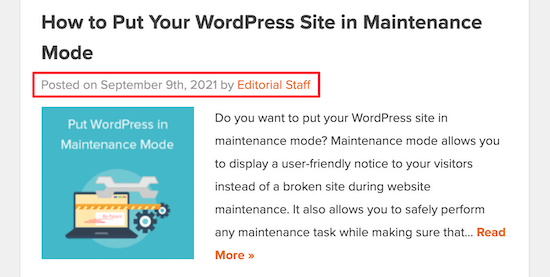
Depending on the WordPress theme you are using, this information can be displayed in different locations. For example, below the post title, after your content, in your sidebar, and more.
This information helps your visitors learn more about the content they’re viewing.
When used the right way, your post meta data can improve the user experience, make your site look more professional, and even increase pageviews.
On the other hand, displaying too much post meta data can make your website look messy and unprofessional.
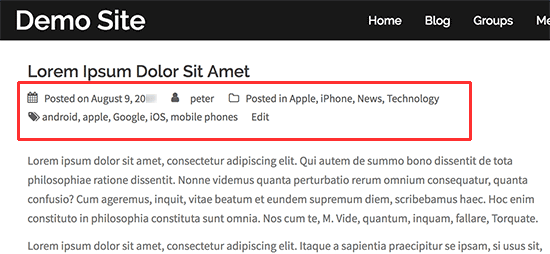
Depending on your website, you can add or remove post meta information to make it more attractive and useful.
Note: All WordPress themes handle post meta data differently. Some themes have the built-in option to customize your meta data without writing any code.
For example, some themes use the WordPress theme customizer to edit the meta data, while others will have their own theme options panel.
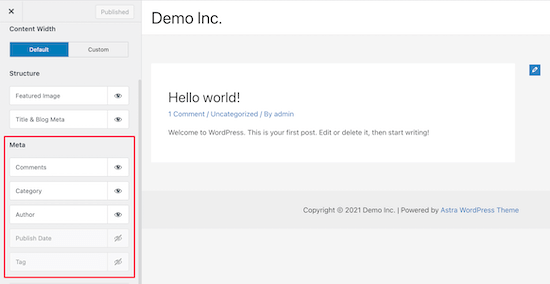
Before you move forward, make sure to check your WordPress theme documentation to see if you can edit theme meta data without code.
That being said, let’s show you how to display and customize your blog post meta data in WordPress.
How Do WordPress Themes Display Post Meta Data?
To display or change your post meta data you’ll need to add code to your WordPress files. If you haven’t done this before, then check out our guide on how to copy and paste code in WordPress.
You can modify the individual theme files directly, or create a child theme to override these theme files. If you are creating your own custom theme, then you can directly add or modify the code in your existing theme files.
There are multiple ways WordPress themes will display post meta data. Some themes will have simple code that’s located below the post title.
By <?php the_author_posts_link(); ?> on <?php the_time('F jS, Y'); ?> in <?php the_category(', '); ?> <?php edit_post_link(__('{Edit}'), ''); ?> |
The code above simply displays the author’s name, post date, and category or categories.
Other themes may define their own template tags, functions, and classes to display post meta data. These functions are then called in the theme files responsible for displaying posts.
Usually, you will find post meta data code in your theme’s index.php, single.php, archive.php, and individual content templates.
Now, let’s take a look at some examples of how to display different post meta data in your WordPress blog.
How to Display or Hide Post Date in WordPress
To display the publish date of a post, you need to add the following code to your theme.
<p>This article was published on: <?php the_time('m/j/y g:i A') ?></p> |
This code simply adds the time and date your post was published.
Notice the characters inside the_time function. These are called format characters, and they tell PHP how to format the date and time.
Here’s how the post meta date will display to your visitors.
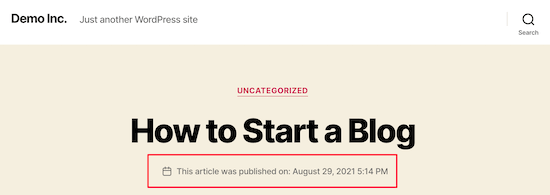
If you want to remove the dates from your WordPress posts, then you need to locate the code with the_time or the_date functions in your theme files and delete those lines.
How to Display Last Update Date for WordPress Posts
If you frequently update old articles on your website, then you may want to display the last updated date of your posts.
This helps your content look fresh and attract readers who may not read a post that was published years ago.
Simply add the following code to your theme files where you want to display the last updated date:
$u_time = get_the_time('U'); $u_modified_time = get_the_modified_time('U'); if ($u_modified_time >= $u_time + 86400) { echo "<p>Last modified on "; the_modified_time('F jS, Y'); echo " at "; the_modified_time(); echo "</p> "; } |
Here is how the last updated date will look to your readers.
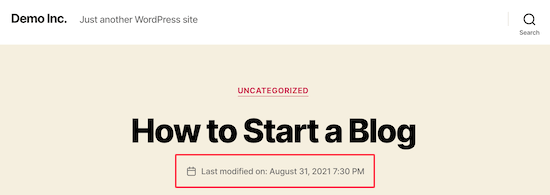
For alternate methods and more detailed instructions, see our guide on how to display the last update date of your posts in WordPress.
How to Show or Hide Author Name in WordPress
To display the author name, you need to add the following code to your theme files.
<p>This article was written by <?php the_author(); ?></p> |
This code uses the_author tag, which only displays the author name.
You can also display the author name that links to an author page that will list all of the posts written by that author.
Simply replace the_author tag with the the_author_posts_link, as shown in the code below:
<p>View all articles by <?php the_author_posts_link(); ?></p> |
Here’s how the post meta data with only the author name will look to your readers.

If you want to remove the author’s name from your theme, then you will need to locate the the_author or the_author_posts_link tags in your theme files and delete them.
How to Show or Hide Categories in WordPress Posts
To display your post categories, you need to add the following code to your theme files:
<p>This post was filed under: <?php the_category(', ') ?></p> |
This code will display post categories separated by a comma. You can replace the comma with any character you want to use as a separator between category names.
Here’s how your post meta data showing post categories will look to your readers.
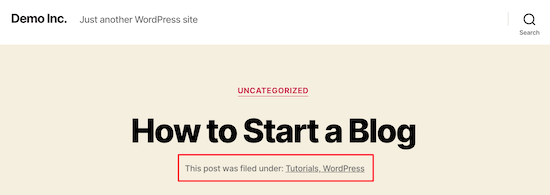
If you want to remove category names from WordPress posts, then you need to locate the line with the_category tag in your theme files and delete it.
How to Show or Hide Tags in WordPress Posts
To display post tags, you need to add the following code to your theme files:
<p>Tags: <?php the_tags(); ?></p> |
This code will simply show all tags associated with the post separated by a comma. You can replace the comma with any character you want to use as a separator.
For example, the following code will show tags separated by a slash.
<?php the_tags( 'Tags: '/ ', ', '<br />' ); ?> |
As you can see, the_tags function accepts three parameters.
the_tags($before, $separator, $after) |
You can use the before and after parameters to add any text or HTML you want to add. This allows you to add CSS classes, which you can later use to style tags in WordPress.
Take a look at the following example:
<?php the_tags('<div class="wpb-tags">Tags: ', ' ', '</div>'); |
Here’s how your post meta tags will display to your readers:

If you don’t want to display tags before or after each post, then locate the line with the_tags() code and delete it from your theme files.
If you’re a more advanced user, then there’s a lot more you can do with displaying post meta data.
For example, you can use custom fields to add your own meta data to WordPress posts. Or, you can even create custom meta boxes to display the custom fields.
We hope this article helped you learn how to display blog post meta data in your WordPress themes. You may also want to see our guide on how much it costs to build a WordPress website and our comparison of the best email marketing services for small businesses.